
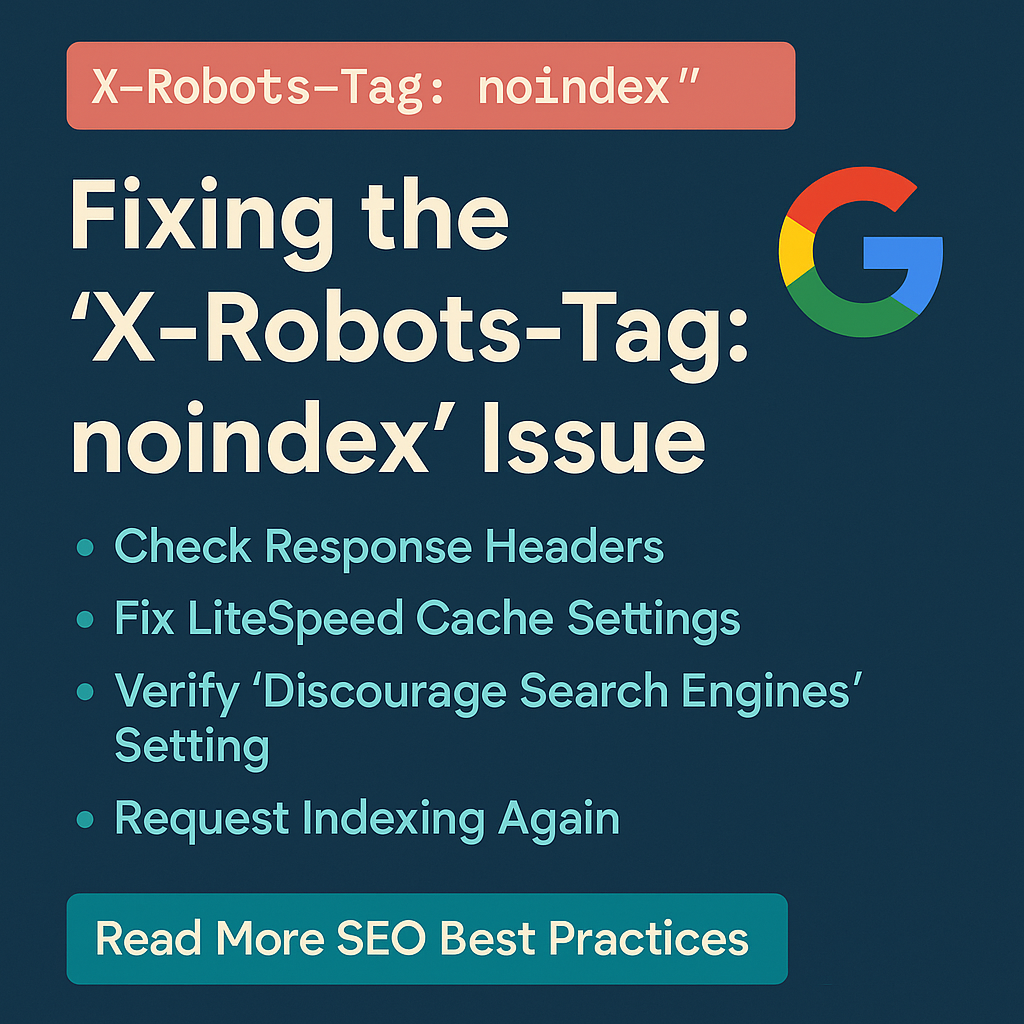

Step-by-step guide to fix the “X-Robots-Tag: noindex” error in WordPress. Learn how to check server headers, adjust LiteSpeed Cache settings, and allow Google to index your pages.
If you see the “X-Robots-Tag: noindex” message in Google Search Console, it means your server is telling Google not to index your page. This can prevent your posts from showing up in search results.
1. Check the Response Headers
Open your page in Chrome, press F12, go to the Network tab, refresh, and click on the document request. Under Response Headers, look for x-robots-tag: noindex. Need help?
2. Fix LiteSpeed Cache Settings
- Go to WordPress Admin → LiteSpeed Cache → Cache → Advanced.
- Disable any setting that forces X-Robots-Tag: noindex.
- Save and click Purge All to clear the cache.
3. Verify “Discourage Search Engines” Setting
Go to Settings → Reading and make sure Discourage search engines from indexing this site is unchecked.
4. Request Indexing Again
Go back to Google Search Console, run a live test, and click Request Indexing if the page is allowed to be indexed. You can follow our Search Console Tips for better results.
Conclusion
Related: Favorite iPhone 16 Pro Accessories – Mid 2025
